How to Draw in Notion: The Native Method (No Embeds Required)
Looking for a Notion drawing tool? Stop using slow Excalidraw embeds. Learn how to draw in Notion natively, highlight text, and sketch diagrams that actually scroll with your page.

If you have ever searched for "how to draw in Notion," you probably hit the same dead end everyone else does:
"Just use an Embed! Connect Miro or Excalidraw!"
But let’s be honest: Embeds are not the same as real drawing. They take seconds to load, they live inside a tiny iframe, and they feel completely disconnected from your actual notes.
You don't want a heavy whiteboard. You just want to circle a task, draw an arrow, or highlight a sentence.
The Solution: Native Drawing
The best way to draw in Notion right now is by using a browser extension that overlays a digital canvas directly onto the DOM (the page structure). This is where JotLayer comes in.
Unlike generic "screen marker" tools that leave your ink floating on the screen, JotLayer anchors your drawings to the page. This means when you scroll down to read more, your Notion drawing scrolls with you.
3 Ways to Use Drawing in Your Workflow
1. The "Cornell Notes" Method
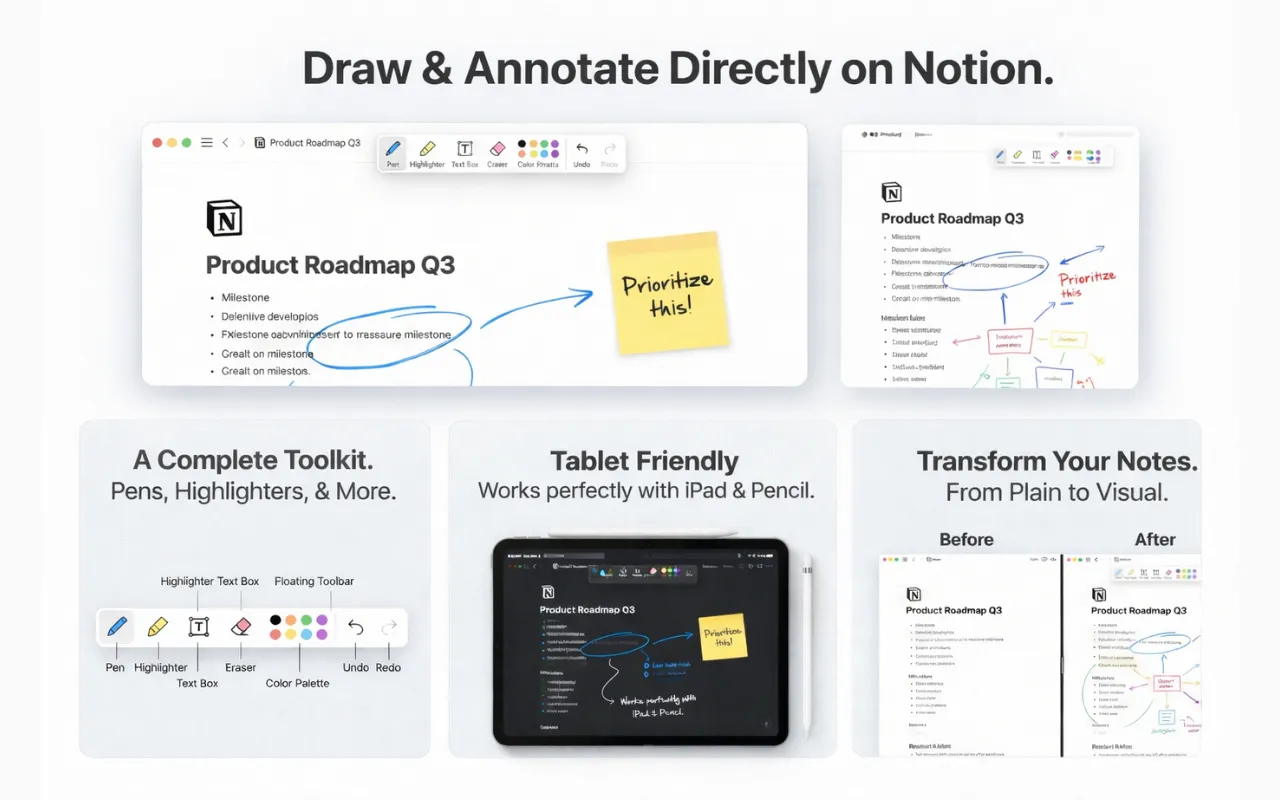
If you are a student, you know that typing notes is fast, but connecting ideas requires visual thinking. Draw arrows between related concepts, circle key dates, or highlight text in different colors without using Notion’s clunky menu.

2. Visual Task Management
Nothing feels better than physically crossing off a to-do list item. Instead of just clicking a checkbox, use the pen tool to strike through completed tasks. It’s a small psychological win, but it makes your Notion dashboard feel alive.
3. Flowcharts & Logic
Trying to explain a complex backend architecture? Don't switch to Figma. Just draw on Notion directly next to your code blocks. Sketching a quick box-and-arrow diagram right beside your documentation saves context switching.
How to Get Started
Install the Extension
Search for "JotLayer" on the Chrome Web Store or use the link below.
Open Notion
Go to any page on Notion.so. It works on databases, docs, and wikis.
Activate the Pen
Click the extension icon (or use the shortcut Alt+J).
You Don't Need an iPad
Stop struggling with embeds. Keep your notes local, fast, and visual with JotLayer.